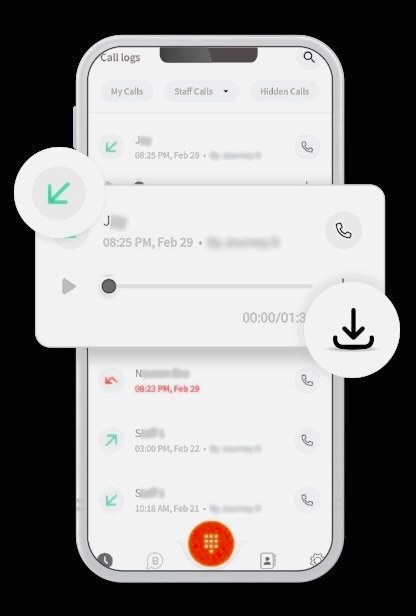

Apple has finally introduced a native call recording feature on the iPhone, allowing users to record calls directly from the Phone app without relying on third‑party tools. This update also includes automatic transcription, seamless integration with the Notes app, and improved call‑management features.
However, call recording still comes with limitations. Not all regions or devices support the feature, and Apple enforces strict privacy rules by notifying all participants when a call is being recorded. If your device doesn’t support the feature, you’ll need alternative methods.
This guide explains how to record calls, where recordings are stored, legal considerations, and the best third‑party options.
Can You Record Phone Calls Directly on an iPhone?
Yes. Modern iPhones now include a built‑in call recording feature inside the Phone app. It works for both incoming and outgoing calls and automatically saves recordings to the Notes app.
Important details:
- All participants are notified when recording begins.
- Transcription is available on supported devices.
- Some regions restrict call recording due to local laws.
- Older devices may not support the feature.
How to Record a Phone Call on iPhone
You can start recording a call directly from the call screen:
- Open the Phone app and start or answer a call.
- Tap the Record icon in the upper‑left corner.
- An automated message will notify all participants that the call is being recorded.
- Tap the icon again or end the call to stop recording.
Recordings are automatically saved in the Notes app under a folder named Call Recordings. If your device supports Apple Intelligence, you’ll also see a real‑time transcript attached to the recording.
Call Transcription on iPhone
Call Transcription converts your recorded calls into searchable text. This is especially useful for interviews, business calls, or important conversations.
How to access transcripts:
- After the call ends, you’ll receive a notification from the Notes app.
- Tap it to open the recording and transcript.
- You can search, copy, or share specific parts of the transcript.
Supported languages include English (US), Spanish (Mexico), Korean, Mandarin Chinese, and others.
Live Voicemail on iPhone
Live Voicemail displays a real‑time transcription of a voicemail as the caller speaks, helping you decide whether to answer.
To enable Live Voicemail:
- Go to Settings > Phone > Live Voicemail.
- Toggle the feature on or off.
Voicemail transcripts are saved in the Phone app and can be searched later.
Best Third‑Party Call Recording Apps for iPhone
If your device doesn’t support the built‑in call recording feature, these apps are reliable alternatives.
TapeACall
A popular app that records calls by merging them with a recording line.
- Pros — Unlimited recording, no internet required, easy sharing
- Cons — Paid subscription, requires three‑way calling
- App Store Rating — 4.3/5
Rev Call Recorder
A free call‑recording app with optional paid transcription services.
- Pros — No ads, unlimited recording, high‑quality audio
- Cons — Only works with U.S. numbers, paid transcription
- App Store Rating — 4.5/5
Cube ACR
A versatile app that records VoIP calls and voice memos.
- Pros — High‑quality audio, cloud backup, PIN/FaceID protection
- Cons — Requires merging calls, premium subscription for full features
- App Store Rating — 4.5/5
Is It Legal to Record Phone Calls on iPhone?
Call recording laws vary widely. There are two main types:
- One‑party consent — Only one person (you) must know about the recording.
- Two‑party consent — Everyone involved must be informed.
Apple automatically plays a notification message to ensure compliance. Still, you should always check your local laws before recording any conversation.
How to Record Your Child’s Device Microphone on iPhone
Parents who want to monitor their child’s safety can use PhoneParental Parental Control, which allows one‑way audio monitoring and microphone recording.
How it works:
- Install PhoneParental Parental Control on your iPhone and PhoneParental Kids on your child’s device.
- Open the app and select One‑Way Audio.
- Tap Record to capture microphone audio.
AirDroid also includes geofencing, screen‑time controls, and real‑time monitoring. Use responsibly and in compliance with local laws.
Final Thoughts
The iPhone’s built‑in call recording feature finally makes it easy to capture important conversations, complete with transcription and secure storage. If your device doesn’t support the feature or you need advanced tools like automatic recording or cloud backup, third‑party apps such as TapeACall, Rev, and Cube ACR are excellent alternatives.
Always ensure you follow local laws and obtain proper consent before recording any conversation.
FAQs About Recording Phone Calls on iPhone
Where are call recordings stored on iPhone?
Recordings are saved in the Notes app under the Call Recordings folder. Third‑party apps store files in their own folders or the Files app.
Can I record calls on iPhone without the other person knowing?
No. Apple automatically notifies all participants. Secret recording may be illegal depending on your region.
Is there a time limit for call recordings?
There is no time limit as long as you have enough storage. Third‑party apps may impose limits.
Can I automatically record all calls on iPhone?
No. Automatic call recording is not supported. You must manually start each recording or use a third‑party app that offers automation.
Does call recording work on all iPhones?
Only supported devices in supported regions can use the built‑in feature.