
Introduction
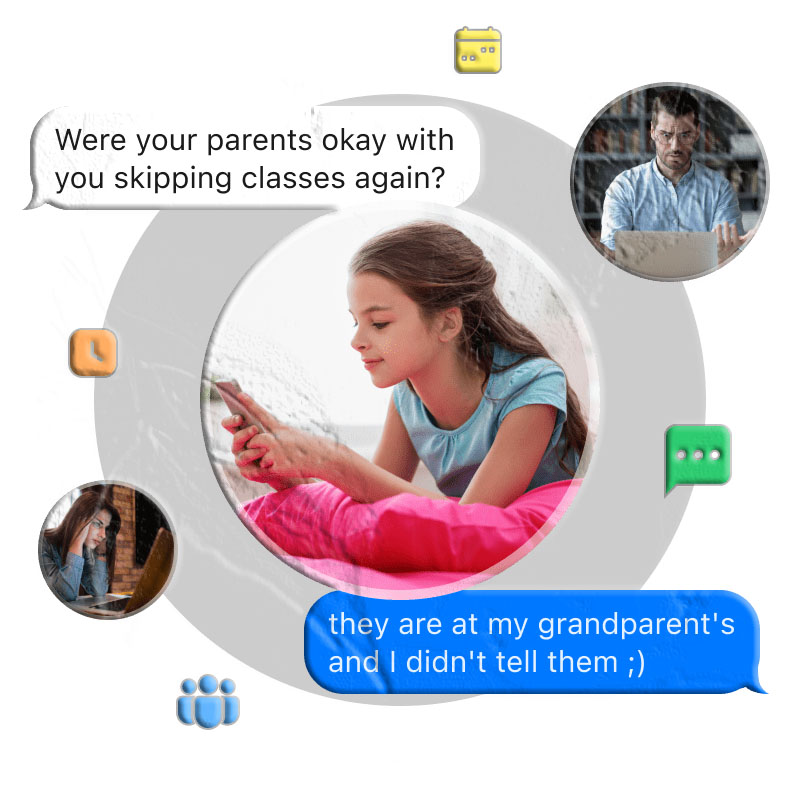
Children today grow up in a world where texting is one of their primary forms of communication. Whether they’re chatting with friends, classmates, or new acquaintances online, text messages can reveal a lot about their digital experiences — both positive and negative.
As a parent, it’s natural to wonder:
- Who is my child talking to?
- Are they being bullied?
- Are strangers contacting them?
- Are they sharing personal information?
- Are they exposed to inappropriate content?
Monitoring a child’s text messages isn’t about invading privacy — it’s about protecting them until they’re mature enough to navigate the digital world safely.
This guide explains six safe, legal, and parent‑approved methods to monitor a child’s text messages on both iPhone and Android, along with tips for maintaining trust and open communication.
6 Ways to Monitor a Child’s Text Messages on iPhone and Android
Below are the most effective and commonly used methods, ranging from parental‑control apps to built‑in device features.
1. Use a Text Monitoring App
A dedicated text‑monitoring app is the most reliable way to keep track of your child’s SMS activity. These apps can:
- Detect harmful keywords
- Send instant alerts
- Sync notifications
- Provide safety insights
- Help parents intervene early
PhoneParental Parental Control is a strong option for Android users, offering real‑time monitoring tools designed for child safety. For iPhone SMS monitoring, parents often use tools like Bark, which can analyze messages for safety risks.
How to Monitor Text Messages Using PhoneParental (Android)
- Install PhoneParental on your device and create an account.
- Install PhoneParental Kids on your child’s Android phone.
- Pair the devices using the secure code.
- Open the dashboard and select SMS Monitoring.
- Add keyword categories you want to monitor.
- Receive instant alerts when harmful or suspicious messages appear.
- View synced notifications and, in emergencies, use live screen viewing.
Pros
- Real‑time alerts
- Keyword detection
- Notification syncing
- Designed for child safety
Cons
- Full SMS monitoring is limited on iPhone due to Apple restrictions
2. Check Synced Messages on Other Apple Devices
If your child uses an Apple ID across multiple devices (iPhone, iPad, Mac), their messages may sync automatically.
This method works only if:
- Messages in iCloud is enabled
- The child’s Apple ID is signed in on another device you manage
How to Enable Message Syncing
- On your child’s iPhone, go to Settings → [Name] → iCloud.
- Turn on Messages.
- Check the other Apple device for synced conversations.
Pros
- No third‑party apps needed
- Works across Apple devices
Cons
- Only works if Apple ID is shared
- Children may notice syncing
3. Forward Text Messages to Your Device
iPhones allow Text Message Forwarding, which sends your child’s SMS messages to another Apple device.
Android does not include built‑in forwarding, but apps like SMS Forwarder can help.
How to Set Up Text Message Forwarding (iPhone)
- Sign in to your child’s Apple ID on your monitoring device.
- On the child’s iPhone, go to Settings → Messages.
- Ensure iMessage is enabled.
- Tap Text Message Forwarding.
- Select your device and enter the verification code.
Important Note
Apple sends a verification code to the child’s device, so they will know forwarding is enabled.
Pros
- Reliable SMS mirroring
- Works instantly
Cons
- Child will see verification code
- Only works for iPhone
4. Restore Cloud Backups to Your Device
If your child backs up their messages to iCloud or Google Drive, you can restore the backup to your own device. This method shows past messages, not real‑time ones.
Restore iCloud Backup (iPhone)
- Go to Settings → General → Reset.
- Tap Erase All Content and Settings.
- Choose Restore from iCloud Backup.
- Sign in with your child’s Apple ID.
- Select the latest backup.
Restore Google Backup (Android)
- Go to Settings → System → Reset options → Erase all data.
- Restart the device.
- Choose Restore from Google Backup.
- Sign in with your child’s Google account.
- Select the latest backup.
Pros
- Access to older messages
- Works for both platforms
Cons
- Erases your device’s current data
- Requires access to child’s account credentials
5. View Text Messages Through Carrier Tools
Some mobile carriers offer limited access to SMS logs. This varies by provider and is often restricted due to privacy laws.
Examples
- T‑Mobile DIGITS may allow viewing certain SMS messages.
- Verizon and AT&T previously offered web‑based SMS access but discontinued it.
- Google Messages for Web is now recommended for Android users.
Pros
- Useful for urgent situations
- No app installation required
Cons
- Limited message visibility
- Not all carriers support it
6. Use Google Messages for Web (Android)
If your child uses Google Messages, you can pair their device with your browser to view SMS messages.
How to Use Google Messages for Web
- Visit messages.google.com/web on your device.
- Open Google Messages on your child’s phone.
- Tap their profile icon → Device pairing.
- Scan the QR code on your screen.
- View messages in real time.
Pros
- Easy to set up
- Works instantly
- No need for backups
Cons
- Child may notice pairing
- Only works for Google Messages

Why Parents Monitor Text Messages
Monitoring isn’t about spying — it’s about protecting children from digital risks they may not recognize.
Here are the most common reasons parents choose to monitor:
Cyberbullying
Children may receive:
- Hurtful messages
- Threats
- Harassment
- Group‑chat bullying
Many kids hide bullying out of fear or embarrassment. Monitoring helps parents intervene early.
Online Predators
Predators often target children through:
- Friendly conversations
- Fake identities
- Manipulative behavior
Monitoring helps parents identify suspicious contacts.
Inappropriate Content
Children may encounter:
- Explicit images
- Violent content
- Peer pressure to share photos
- Harmful conversations
Monitoring helps parents guide children toward safer digital habits.
Oversharing Personal Information
Kids may unknowingly share:
- Home address
- School name
- Phone number
- Location
- Family details
This increases risks like identity theft or stalking.
Reputation Protection
Teens may post or send messages impulsively. Monitoring helps parents prevent:
- Embarrassing posts
- Harmful rumors
- Screenshots shared without consent
Malware & Scams
Children may click:
- Suspicious links
- Fake giveaways
- Phishing messages
Monitoring helps parents teach safer online behavior.
PhoneParental: A Balanced Approach to Digital Safety
PhoneParental is designed for responsible, transparent digital supervision, not secret monitoring. It helps parents:
- Receive real‑time alerts
- Detect harmful keywords
- Sync notifications
- Track device location
- Set screen‑time limits
- Block harmful content
- Monitor app usage
It supports open communication between parents and children, helping families build trust while staying safe.
Conclusion
Monitoring a child’s text messages is a personal decision, but for many families, it’s an essential part of keeping kids safe in a digital world. Whether you choose:
- A parental‑control app
- Message syncing
- Forwarding
- Cloud backups
- Carrier tools
- Google Messages for Web
…the goal is the same: protect your child while maintaining trust and communication.
Tools like PhoneParental offer a balanced, privacy‑respecting way to stay informed and support your child’s digital wellbeing.
FAQs About Monitoring a Child’s Text Messages
Can I see my child’s text messages using Family Link?
No. Family Link does not provide SMS monitoring.
Can I view my child’s iMessages through Family Sharing?
No. Family Sharing does not include message access.
Is it legal to monitor my child’s text messages?
Yes — parents can monitor a minor’s device, but it’s best to do so transparently.
Can I monitor text messages without installing anything?
Yes — via iCloud syncing, message forwarding, or Google Messages for Web.
What is the safest method for long‑term monitoring?
A parental‑control tool like PhoneParental provides the most balanced and secure approach.