
Introduction
Recording phone calls on Android can be incredibly useful — whether you’re saving important details from a conversation, keeping a record of agreements, or documenting customer service interactions. Android devices offer several ways to record calls, ranging from built‑in tools to third‑party apps and cloud‑based services.
However, before you hit “Record,” it’s essential to understand the legal requirements. Call recording laws vary widely, and in many regions, you must obtain consent from the other party.
This comprehensive guide covers:
- Legal considerations
- How to record calls using Android’s built‑in tools
- How to use Google Voice
- How to use safe third‑party apps
- Where recordings are stored
- How PhoneParental supports digital wellbeing
- FAQs
Let’s explore how to record calls responsibly and effectively.
Is It Illegal to Record a Phone Call?
Call recording laws differ depending on where you live. Understanding these rules is essential to avoid legal issues.
One‑Party Consent Regions
In many countries and U.S. states, only one person on the call needs to know that the call is being recorded. This means you can record the call as long as you are part of the conversation.
Two‑Party (All‑Party) Consent Regions
Some regions require everyone on the call to be informed and agree to the recording.
Examples include:
- California
- Florida
- Illinois
- Maryland
- Massachusetts
- Washington
- Delaware
If you live in one of these regions, you must notify the other party before recording.
How to Record a Phone Call on Android
Android offers multiple ways to record calls, depending on your device model, region, and app availability.
1. Use the Built‑In Phone App (Where Available)
Many Android devices — especially those using Google’s Phone app — include a built‑in call recording feature. However, availability depends on:
- Your device manufacturer
- Your region
- Local laws
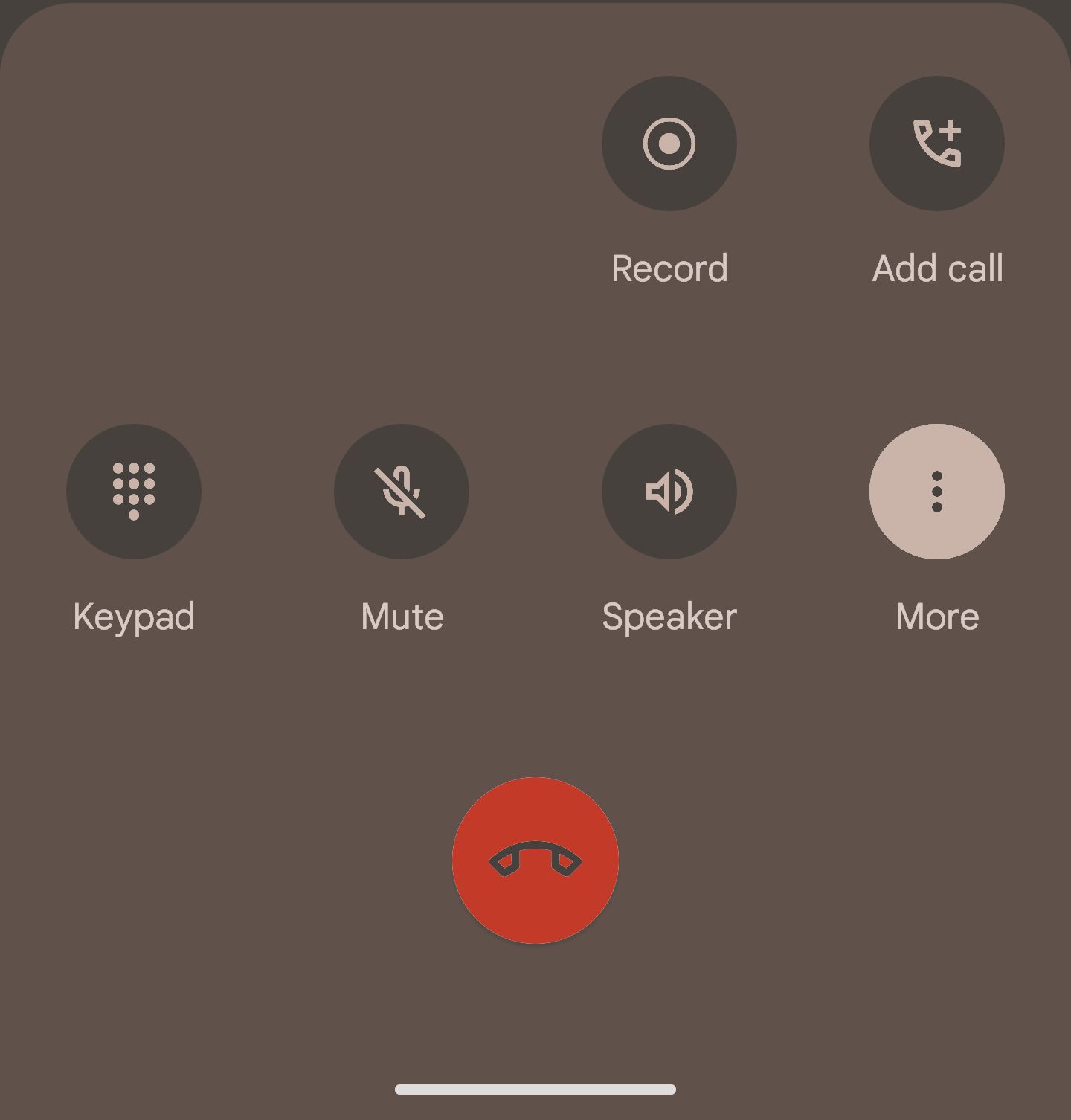
If call recording is supported, you’ll see a Record button during calls.
How to Enable Call Recording
- Open the Phone app
- Tap the three‑dot menu
- Select Settings
- Tap Call Recording
- Enable:
- Always record calls from unknown numbers
- Always record calls from selected contacts
How to Access Your Recordings
- Open the Phone app
- Go to Recents
- Select a recorded call
- Tap Play
Recordings are usually stored in:
- Internal storage
- Phone app’s recording folder
2. Use the Screen Recorder (With Microphone Audio)
Some Android devices include a screen recorder that can capture audio from the microphone. This method records your side of the conversation clearly, but the other party’s audio may vary depending on your device.
How to Use Screen Recorder
- Swipe down to open Quick Settings
- Tap Screen Record
- Enable Record Audio
- Start the recording
- Make or receive your call
- Stop the recording when finished
Recordings are saved in your Gallery or Screen Recordings folder.
3. Use Google Voice (Free & Legal)
Google Voice allows call recording, but only for incoming calls, and it plays an audible message notifying all participants.
How to Enable Recording in Google Voice
- Open Google Voice
- Go to Settings
- Enable Incoming call options
How to Record a Call
- Press 4 during the call
- Google Voice will announce the recording
- Press 4 again to stop
Recordings are saved in your Google Voice inbox.
External Link:
Google Voice Help: https://support.google.com/voice/answer/115061
4. Use Safe Third‑Party Call Recording Apps
If your device doesn’t support built‑in recording, third‑party apps can help. These apps require microphone access and may have limitations depending on your region.
Popular Call Recording Apps
1. Automatic Call Recorder Pro
Features:
- Automatic recording
- MP3 file saving
- Password protection
- Cloud backup
- Easy playback
2. Cube ACR
Features:
- Records phone calls
- Supports VoIP apps (WhatsApp, Viber, Skype)
- Cloud backup
- PIN lock
3. ACR Phone
Features:
- Automatic call recording
- Spam blocking
- Privacy controls
- Cloud storage support
- Call notes
Where Are Call Recordings Stored on Android?
Recordings may be stored in:
- Internal storage
- File Manager → Recordings
- App‑specific folders
- Google Drive or Dropbox (if enabled)
To find them:
- Open File Manager
- Search for:
- “Recordings”
- “CallRecordings”
- App name (e.g., “ACR”)
- Tap any file to play
PhoneParental: A Safe Tool for Digital Wellbeing
PhoneParental is designed for responsible parental supervision, helping families promote healthy digital habits. It does not record calls or enable covert audio capture.
Instead, PhoneParental offers:
- Screen‑time monitoring
- App usage insights
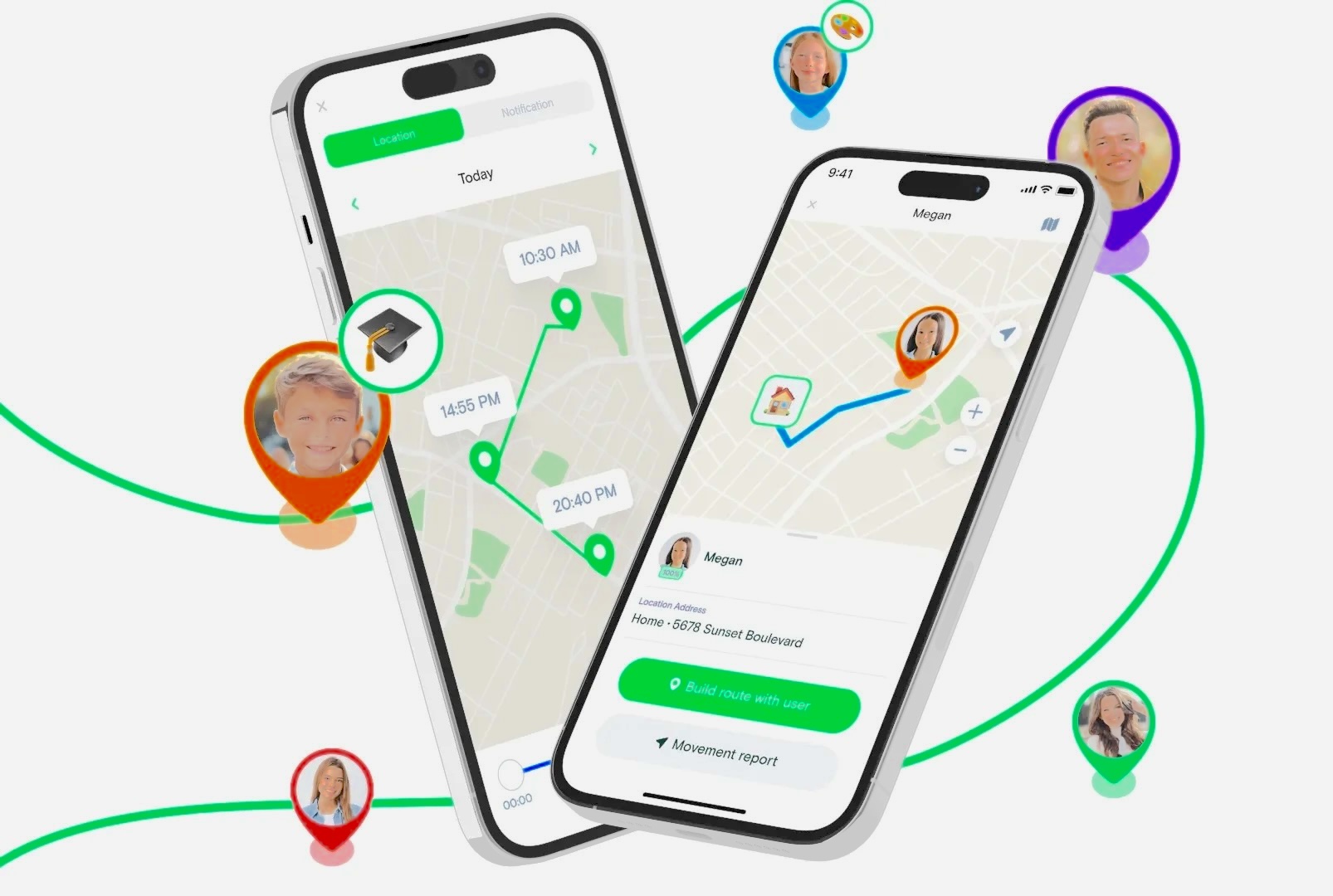
- Location tracking
- Notification syncing
- Keyword alerts
- Device activity reports
Parents can use PhoneParental to support children’s digital wellbeing while respecting privacy and consent.
Final Verdict
Android offers several safe and legal ways to record phone calls, including:
- Built‑in call recording
- Screen recording
- Google Voice
- Third‑party apps
Before recording any call, always check your local laws and obtain consent when required. Recording calls responsibly helps protect privacy and ensures compliance with regulations.
For families, tools like PhoneParental support digital wellbeing without enabling covert monitoring.
FAQs
1. Can you record a phone call while on the phone?
Yes — using built‑in tools, Google Voice, or third‑party apps, depending on your device.
2. How do I record a call on Samsung?
Samsung devices often include a built‑in recorder in the Phone app’s menu.
3. How do I record a live call on Android?
Use the Phone app’s Record button or Google Voice for incoming calls.
4. How do I record conversations on Android?
Apps like Cube ACR can record calls from various communication apps.
5. How do I auto‑record calls?
Enable Automatic Call Recording in your Phone app settings (if supported).
6. How do I record a call without an app?
Use the built‑in screen recorder or Google Voice.