Introduction
Screen recording has become an essential feature for Samsung users — whether you’re creating tutorials, saving livestream moments, demonstrating app issues, or sharing gameplay. Fortunately, Samsung includes a powerful built‑in screen recorder across most Galaxy devices, eliminating the need for complicated third‑party tools.
This guide covers everything you need to know about screen recording on Samsung phones, including:
- Supported models
- How to use Samsung’s built‑in screen recorder
- How to customize recording settings
- How to use Game Launcher for gameplay recording
- Trusted third‑party screen recorder apps
- Where recordings are stored
- How PhoneParental supports digital wellbeing
- FAQs
Let’s explore how to make the most of Samsung’s screen recording tools.
1. Which Samsung Models Support Screen Recording?
Samsung introduced its native screen recorder with One UI, starting from Android 9 (Pie) and expanding across newer versions. Today, most Samsung Galaxy devices support screen recording, including:
- Galaxy S series (S8 and newer)
- Galaxy Note series (Note 8 and newer)
- Galaxy A series (A10–A80 and newer)
- Galaxy M series (various models)
- Galaxy Fold and Flip series
Important Notes
- Some apps (e.g., Netflix, banking apps) block screen recording due to copyright or security restrictions.
- If your Samsung device runs Android 9 or later, you likely have the built‑in screen recorder.
- Older models may require third‑party apps.
External Link:
Samsung One UI Overview: https://www.samsung.com/global/galaxy/one-ui/
2. How to Screen Record with Samsung’s Built‑In Screen Recorder
Samsung’s native screen recorder is the easiest and most reliable way to capture your screen.
Step 1: Enable Screen Recorder in Quick Settings
- Swipe down from the top of your screen
- Swipe down again to open Quick Settings
- Look for Screen Recorder
- If you don’t see it:
- Tap the pencil icon (or three‑dot menu → Button order)
- Drag Screen Recorder into the Quick Settings panel
Once added, you can access it anytime with a single swipe.
Step 2: Start a Screen Recording
- Tap Screen Recorder
- Choose your audio settings:
- No sound
- Media sounds
- Media sounds and mic
- Choose whether to show touches
- Tap Start
A countdown will appear, and recording begins automatically.
Step 3: Customize Screen Recorder Settings
Samsung allows you to adjust video quality, audio options, and selfie camera size.
Option A: Customize via Quick Settings
- Swipe down
- Long‑press Screen Recorder
- Adjust:
- Video resolution
- Sound source
- Selfie video size
- Tap Done
Option B: Customize via Advanced Settings
- Open Settings
- Tap Advanced Features
- Select Screenshots and Screen Recorder
- Tap Screen Recorder Settings
- Adjust:
- Sound options
- Video quality
- Selfie video size
This method gives you full control over recording quality.
Step 4: Add Screen Recorder to Quick Panel (If Missing)
If your device doesn’t show the recorder:
- Open Play Store
- Search Screen Recorder (Samsung’s official tool may appear)
- Install and open
- Add it to Quick Settings manually
3. Screen Record on Samsung Using Third‑Party Apps
If your Samsung device doesn’t support built‑in recording or you need advanced features, third‑party apps are a great alternative.
Below are trusted, widely used apps that work well on Samsung devices.
1. AZ Screen Recorder
AZ Screen Recorder is one of the most popular screen recording apps for Android.
Features
- No watermark
- Unlimited recording time
- Adjustable resolution, frame rate, and bitrate
- Floating controls
- Built‑in video editor
How to Use AZ Screen Recorder
- Install from Google Play
- Open the app and grant permissions
- Tap the gear icon to adjust settings
- Tap the record button to start
- Pull down the notification bar to stop or pause
2. InShot Screen Recorder
InShot is known for its powerful editing tools and user‑friendly interface.
Features
- High‑quality screen recording
- Internal and external audio
- Built‑in video editor
- No watermark (optional)
How to Use InShot Screen Recorder
- Install from Google Play
- Open the app and configure settings
- Adjust resolution, frame rate, and audio
- Tap the record button
- Stop recording from the notification panel
4. How to Record Samsung Screen Using Game Launcher
Game Launcher is pre‑installed on many Samsung devices and is ideal for recording gameplay.
Step 1: Add Apps to Game Launcher
- Open Game Launcher
- Swipe up to open the library
- Tap the three‑dot menu
- Select Add Apps
- Choose the app you want to record
This allows you to record non‑gaming apps as well.
Step 2: Start Recording
- Open the app from Game Launcher
- Tap Game Tools (bottom left)
- Tap Record
Step 3: Stop Recording
- Tap the Stop button
- View recordings in:
- Photos app
- Game Launcher gallery

5. Where Are Screen Recordings Stored on Samsung?
Samsung stores screen recordings in the Screen Recordings folder.
How to Find Them
- Open My Files
- Tap Videos
- Select Screen Recordings or Screen Capture
You can also find them in:
- Gallery → Albums → Screen recordings
- DCIM → ScreenRecorder
6. How to Transfer Screen Recordings on Samsung
If you want to move recordings to an SD card or another folder:
- Open My Files
- Tap Videos
- Open Screen Recordings
- Long‑press a video
- Tap Move or Copy
- Navigate to SD Card
- Choose your destination folder
7. PhoneParental: Supporting Screen Recording
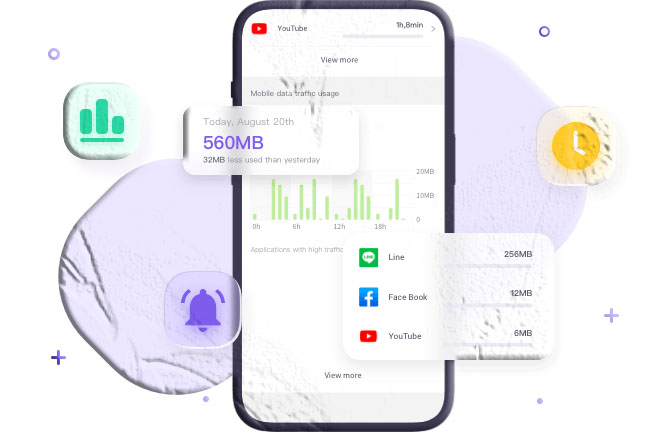
PhoneParental is designed for responsible parental supervision, helping families build healthy digital habits. It record screens or enable covert monitoring.
Instead, PhoneParental offers:
- Screen‑time management
- App usage insights
- Location tracking
- Notification syncing
- Keyword alerts
- Device activity reports
Parents can use PhoneParental to support screen recording while respecting privacy and consent.
Conclusion
Samsung provides powerful and flexible screen recording tools across its Galaxy lineup. Whether you’re capturing tutorials, gameplay, or troubleshooting steps, you can choose from:
- The built‑in Samsung screen recorder
- Game Launcher
- Trusted third‑party apps like AZ Screen Recorder and InShot
With customizable settings, high‑quality output, and easy access to recordings, Samsung makes screen recording simple and efficient.
For families, tools like PhoneParental help promote healthy digital habits without enabling covert monitoring.
FAQs About Screen Recording on Samsung
1. Where is the screen recorder on Samsung?
Swipe down twice to open Quick Settings, then look for Screen Recorder.
2. How do I turn on screen recording?
Tap the Screen Recorder icon in Quick Settings and choose your audio preferences.
3. How do I transfer screen recordings?
Use My Files → Videos → Screen Recordings → Move/Copy.
4. How do I stop or pause a recording?
Use the floating toolbar or the notification panel.
5. Where are screen recordings saved?
In My Files → Videos → Screen Capture or Gallery → Albums → Screen recordings.